
Your Gaming Platform, On Boot.
Boot into your configured platform, switch anytime via "Library" in Game Bar — Steam, XBOX, Epic, Armoury Crate SE, Playnite, or anything you add.
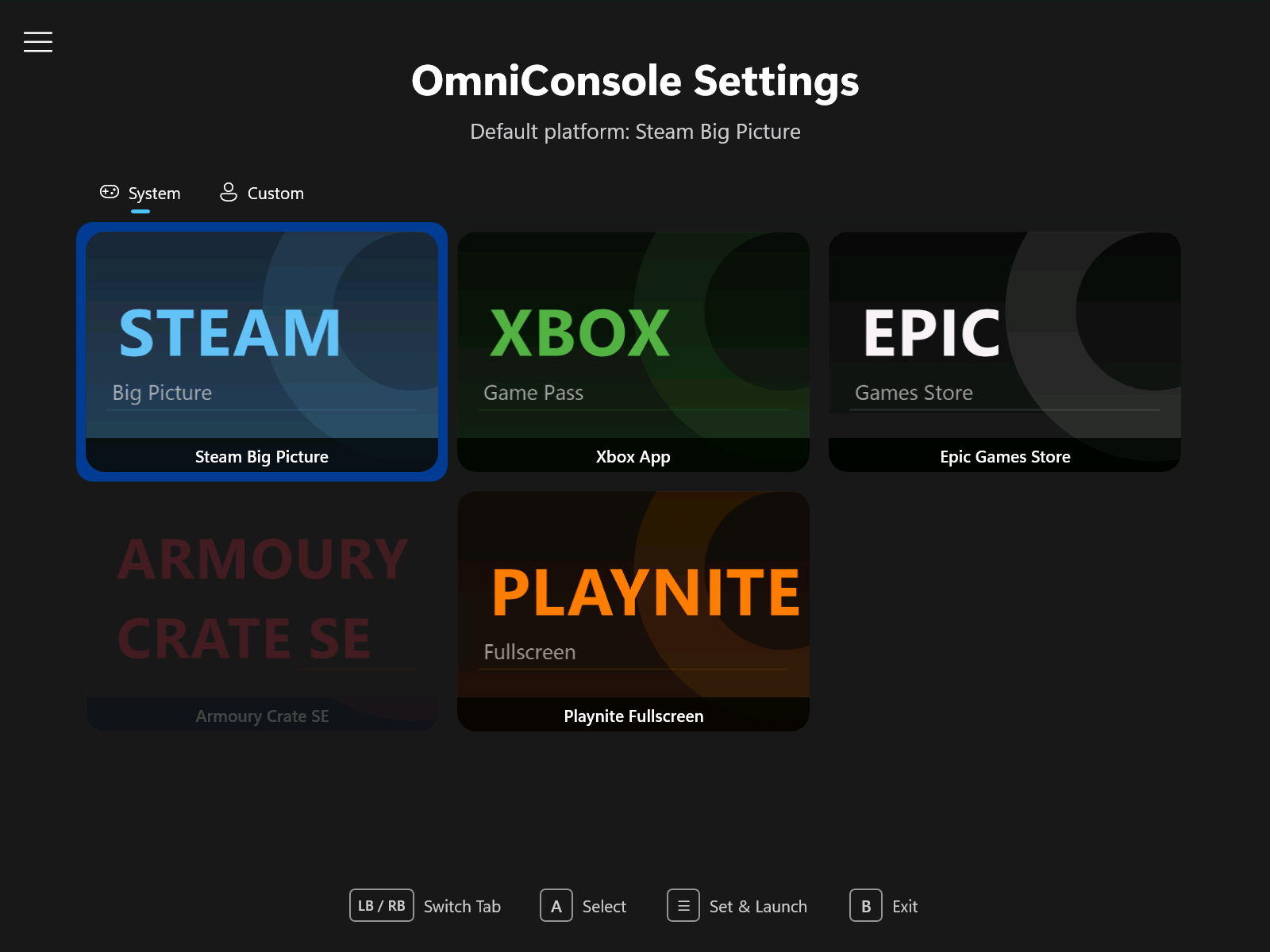
OmniConsole Settings
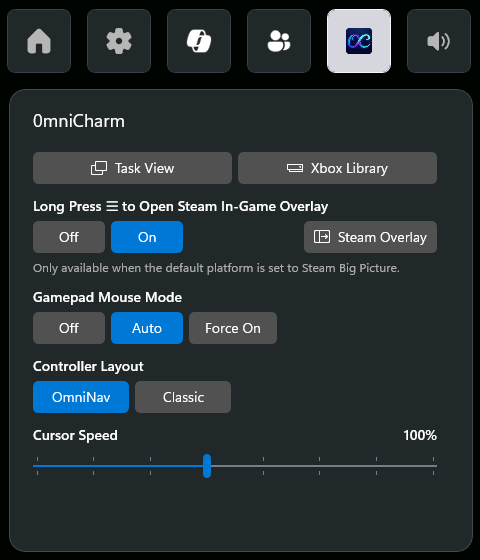
OmniCharm Widget
What is OmniConsole?
OmniConsole runs as the Windows 11 XBOX Mode (FSE) Home shell on PCs and handhelds (ROG Xbox Ally X, etc.), with an OmniCharm Game Bar widget, Steam shortcuts, and Nekomata Mode to turn your gamepad into keyboard and mouse, tailored per app, so everything stays on the gamepad.
Whenever XBOX Mode (FSE) activates, OmniConsole launches your configured gaming platform. Any platform can be your XBOX Mode (FSE) Home — Steam, XBOX, Epic, Armoury Crate SE, Playnite, or anything you add.
How It Works
Boot
Auto-launch into your configured platform (requires "Enter XBOX mode (FSE) on startup" enabled).
XBOX Button
Opens Game Bar — pick "Home" to launch the platform, or "Library" to open OmniConsole settings.
Start Menu
Launch OmniConsole from the desktop; XBOX Mode (FSE) is triggered automatically before the platform starts.
Launch configured platform
Trigger XBOX Mode (FSE) dialog → Re-launch in XBOX Mode (FSE) → Launch configured platform
Gamepad-First Design
Stay on the controller — reach Steam menus and navigate desktop apps.
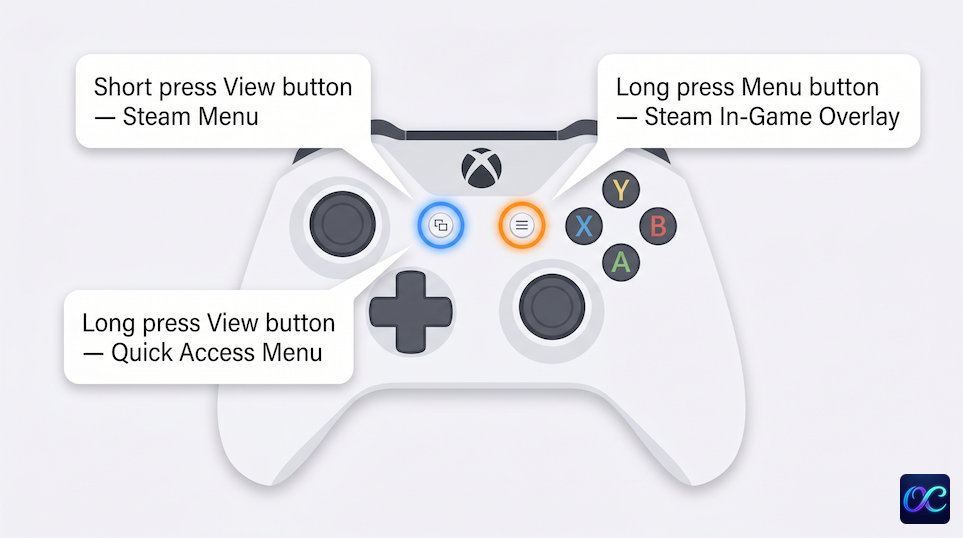
Gamepad Steam Shortcuts
Controller shortcuts for Steam — ⧉ opens Steam menus, long-press ☰ opens the Steam In-Game Overlay.
| Button | Action |
|---|---|
| ⧉ (short press) | Open Steam menu¹ |
| ⧉ (long press) | Open Quick Access menu¹ |
| ☰ (long press) | Open Steam In-Game Overlay²˒³ |
¹ In Steam Big Picture ² In-game ³ Toggleable via the OmniCharm Game Bar widget
Nekomata Mode
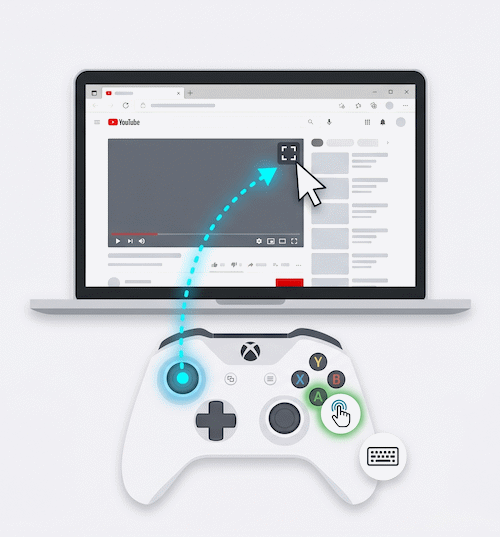
Turn your controller into a mouse and keyboard, customizable per app. Nekomata weaves a charm for each app, remapping XInput controls to keyboard, mouse, or cursor actions, and can raise mapping priority with Nekomata Boost, add hold-to-repeat, and prevent double input. Three layouts to start from: OmniNav, Classic, or a Custom layout you define yourself (Pro). OmniNav shown below — common keys only; tap the link below for the full reference.
| Button | Action |
|---|---|
| Left Stick | Cursor |
| Right Stick | Scroll |
| A | Left Click |
| B | Right Click |
| X | Page Down |
| Y | Page Up |
| D-pad | Arrow Keys |
On / Off toggle. When on, your customized profiles take over; built-in mapping covers Edge, Chrome, Firefox, Opera, Brave, Epic Games Store, EA Desktop, Playnite Desktop, File Explorer, the Windows file picker, the Open with dialog, Windows Installer, Steam, Discord, App Installer, and a wide range of built-in Windows tools and Control Panel dialogs (also customizable). Those that run as Administrator, such as Task Manager, and the On-screen keyboard also require Administrator App Support (Pro). On the ROG Ally family, which has built-in gamepad mapping, Nekomata Mode stays out of the way; Pro can turn it on for those consoles.
Features
Everything you need to make your gaming PC feel like a console.
Automatic Platform Launch
Your configured gaming platform starts automatically whenever XBOX Mode (FSE) activates — straight to play, zero extra steps.
XBOX Mode (FSE) Entry & Exit
When launched outside XBOX Mode (FSE) (e.g., from the Start Menu), OmniConsole automatically triggers the XBOX Mode (FSE) entry dialog. Under Settings → Advanced → XBOX Mode (FSE) you can have Windows ask every time, restart for optimized performance, or start right away. The confirmation on the way back to the Windows desktop is yours to keep or leave out as well.
Multi-Platform Support
Built-in support for Steam Big Picture, XBOX App, Epic Games Store, Armoury Crate SE, and Playnite Fullscreen.
Custom Platform Support (Experimental)
Add your own platforms via Protocol URI, executable path, or Packaged App (MSIX / APPX), with an optional cover image. Launch arguments are available when using the executable path type.
Platform Import & Export
Share custom platform configurations as JSON. Right-click or long-press a card to export; use the Import button to load shared configurations. Per-user install paths are saved as portable environment variables, so a platform you share works on someone else's console right away.
Community Platforms
Browse platform definitions shared by the community on GitHub, straight from the Custom tab, and add the one you like with a single click. Export your own and open a pull request to have it listed.
Gamepad-Compatible File Picker
A custom file picker that replaces the system FileOpenPicker (which does not support gamepad input). Browse executables and cover images entirely with a controller.
Gamepad Support
The main app and the OmniCharm widget are both driven entirely with a gamepad: navigate with the D-Pad or Left Stick, A to confirm and B to go back, with the remaining buttons taking on whatever each screen offers. The main app shows the available buttons along the bottom of the screen.
Gamepad Steam Shortcuts
The ⧉ button controls Steam Big Picture menus — short press opens the main menu, long press opens Quick Access. In-game, long-press ☰ to open the Steam In-Game Overlay.
Nekomata Mode
Use your gamepad as a mouse and keyboard, customizable per app. An On / Off toggle, in OmniNav, Classic, or a layout you define yourself (Pro), with adjustable cursor speed. When on, your customized profiles take over, while common apps run on ready-made mapping you can customize too. Nekomata weaves a charm for each app, remapping XInput controls to keyboard, mouse, or cursor actions, and can raise mapping priority with Nekomata Boost, add hold-to-repeat, and prevent double input. Open the editor from the OmniCharm widget.
Cursor Speed & Size
Under Settings → Advanced → Nekomata you can set the cursor’s movement speed from 25% to 200%, and its size from 100% up to 800%. The OmniCharm widget carries the same two sliders.
Custom Controller Layout (Pro)
Define your own default layout alongside OmniNav and Classic. Arrange the controller's inputs in the mapping editor: apps covered by built-in mapping pick it up right away, and every new app profile starts from it. The OmniCharm widget can switch to it as well.
Administrator App Support (Pro)
Gamepad mappings reach apps and games that run as an administrator. Install it from the Advanced settings page and approve the administrator prompt, and Nekomata Mode extends to those apps.
Screen Keyboards from Any Button (Pro)
Assign a screen keyboard to a controller button and it opens without interrupting what you are doing. Pick the Gamepad keyboard, which you type on with the controller itself, or the classic On-screen keyboard, which you point at with the cursor. The On-screen keyboard also requires Administrator App Support.
Nekomata Mode on the ROG Ally Family (Pro)
These consoles ship with the manufacturer's own gamepad mapping, and Nekomata has always deferred to it. Pro makes that a choice: turn it on under Settings → Advanced, then set Control Mode to Gamepad in Command Center. Everything Nekomata does on your other consoles she does here too, with the same layouts, the same per-app charms, and the same editor you already know.
Performance Overlay Controls (Pro)
Adjust RivaTuner Statistics Server's on-screen display from inside OmniConsole. Under Settings → Advanced → Performance Overlay you can turn the on-screen display on or off, show framerate statistics, add a shadow behind the text, scale it up, and set a framerate limit. The OmniCharm widget carries the same controls on its Overlay tab, so they are within reach while a game is running. Requires Administrator App Support and RivaTuner Statistics Server.
OmniCharm Widget
A Game Bar widget for in-game quick access — open Task View, the XBOX Library, File Explorer, or the Steam Overlay in one tap. File Explorer opens straight to This PC, and Nekomata Mode's built-in mapping already covers it, so you browse and open your files with the gamepad alone. Also toggles Nekomata Mode, controller layout, cursor speed, and the long-press ☰ shortcut for the Steam In-Game Overlay. It opens the per-app mapping editor for the foreground app too, including apps that run as an administrator (Pro). Its Overlay tab adjusts RivaTuner Statistics Server's on-screen display while a game is running (Pro).
Game Bar Integration
Game Bar's Home button launches your gaming platform; Library opens OmniConsole Settings.
Card-Grid Settings UI
Large icon cards designed for large-screen and handheld use, operable with mouse, touch, or XBOX controller.
Phantom Glass Backgrounds
A frosted glass background that softly blurs and tints your desktop wallpaper behind the app. Choose from Phantom Glass, Phantom Glass Deep, or the solid Phantom Classic in Settings.
Fluent Motion Throughout
The Launch screen and Settings glide in with smooth entrance animations, and every move between screens flows with a transition.
Troubleshoot Page
A dedicated XBOX Mode (FSE) recovery page — restarts Game Bar to fix issues such as the "Restart for better performance" dialog not appearing, then enters XBOX Mode (FSE).
Environment Snapshot
From the About page, copy a Markdown report of your system, hardware, and OmniConsole health in one click — paste it straight into a bug report.
Dedicated Settings Entry
A separate "OmniConsole Settings" entry appears in All Apps, so you can change your default platform anytime.
Native XBOX Mode (FSE) Integration
Registered as a Windows 11 XBOX Mode (FSE) Home App through the official API.
In-App Updates
Automatically checks GitHub for the latest release, with built-in downloading and installation directly from the Advanced settings page.
Multilingual UI
Available in English, Traditional Chinese (繁體中文), and Simplified Chinese (简体中文), along with community-contributed languages you can browse, download, and keep up to date from the Advanced settings page.
OmniConsole Pro
OmniConsole is a personal interest project, written and maintained by a solo developer in their own free time, and your support keeps it going. The Pro page in Settings carries the link, and it is where you activate Pro and manage the licenses on this console.
Prerequisites
OmniConsole needs Windows 11 24H2 (Build 26100.7019) or later, with the Full Handheld edition of XBOX Mode (FSE) enabled.
Desktops / Laptops / Tablets / Handhelds without the Full Handheld edition
Microsoft is gradually rolling out a Limited PC edition of XBOX Mode (FSE) to regular PCs. Use Xbox Full Screen Experience Tool to switch to the Full Handheld edition first.
Open XFSET repositoryNative XBOX Mode (FSE) Handheld Devices
Devices like the ROG Xbox Ally series ship with the Full Handheld edition. Install OmniConsole directly.
XBOX Controller Required
Game Bar, XBOX Mode (FSE), and gamepad features all require an XBOX-compatible (XInput) controller with an XBOX button.
Quick Start
Four steps to turn your PC into a gaming console.
- 1
Install OmniConsole
Download the latest release and run Install.bat, or manually install the .cer certificate and both .msix packages.
- 2
Configure Your Default Platform
Open OmniConsole Settings, pick Steam Big Picture / XBOX / Epic / Armoury Crate SE / Playnite, or add a custom one.
- 3
Set as XBOX Mode (FSE) Home App
Windows Settings → Gaming → XBOX mode (FSE) → Choose home app → OmniConsole. Enable "Enter XBOX mode (FSE) on startup".
- 4
Done
Reboot, press the XBOX button and pick "Home", or launch from the Start Menu — your platform opens automatically.