
Your Gaming Platform, On Boot.
Boot into your configured platform, switch anytime via "Library" in Game Bar — Steam, Xbox, Epic, Armoury Crate SE, Playnite, or anything you add.
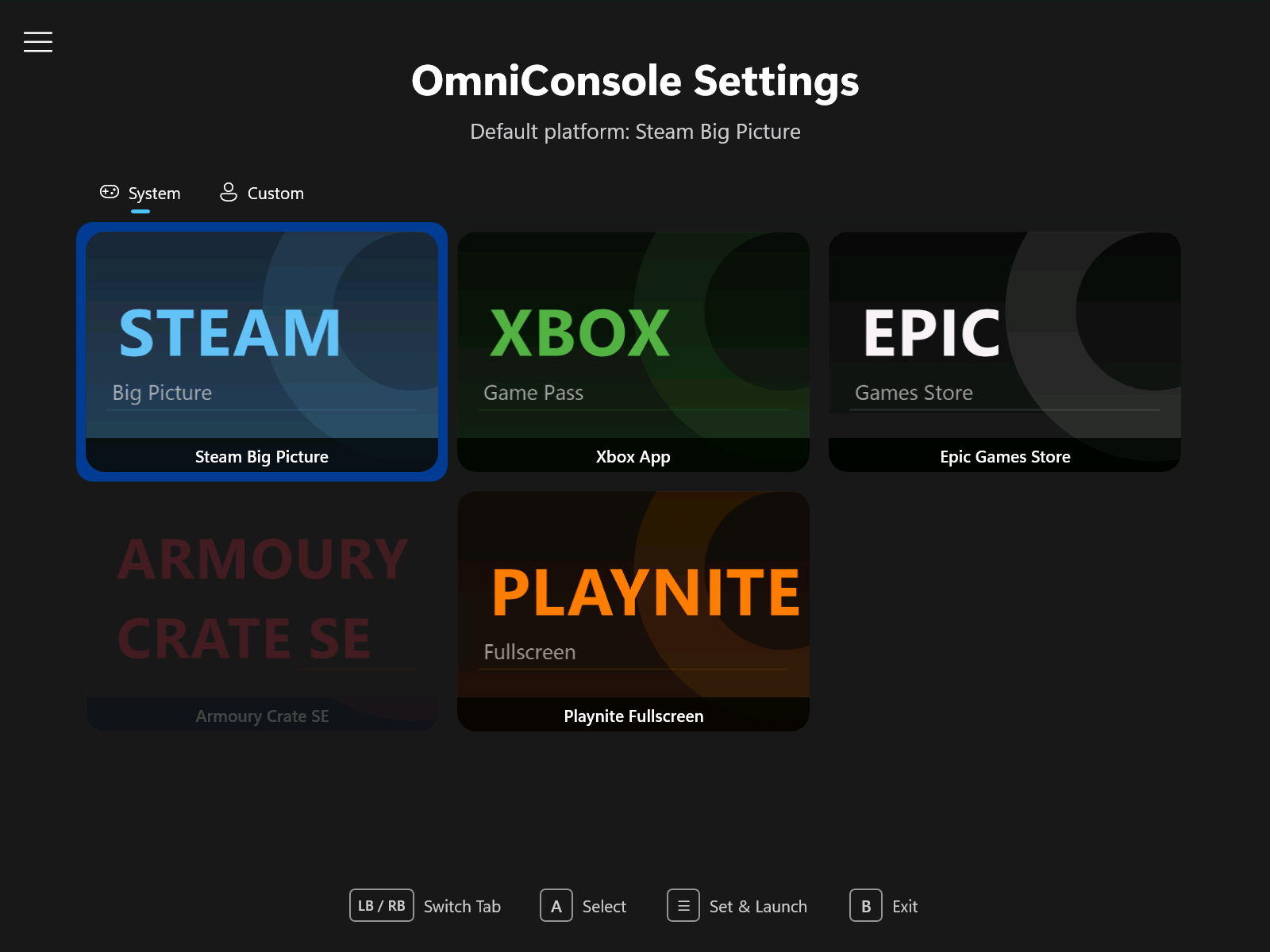
OmniConsole Settings
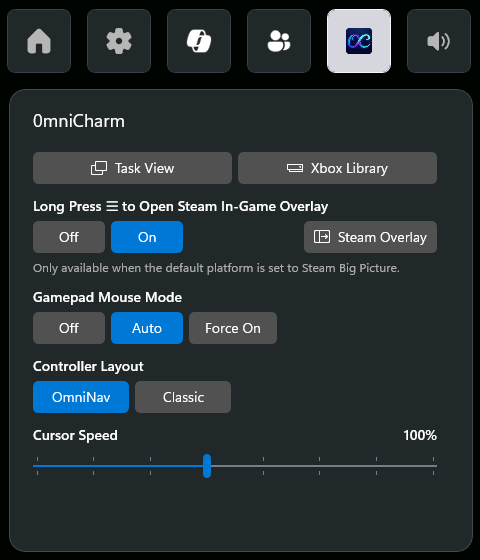
OmniCharm Widget
What is OmniConsole?
OmniConsole runs as the Windows 11 Xbox Mode (FSE) Home shell on PCs and handhelds (ROG Xbox Ally X, etc.), with an OmniCharm Game Bar widget, Steam shortcuts, and Nekomata Mode to turn your gamepad into keyboard and mouse, tailored per app, so everything stays on the gamepad.
Whenever Xbox Mode (FSE) activates, OmniConsole launches your configured gaming platform. Any platform can be your Xbox Mode (FSE) Home — Steam, Xbox, Epic, Armoury Crate SE, Playnite, or anything you add.
How It Works
Boot
Auto-launch into your configured platform (requires "Enter Xbox mode (FSE) on startup" enabled).
Xbox Button
Opens Game Bar — pick "Home" to launch the platform, or "Library" to open OmniConsole settings.
Start Menu
Launch OmniConsole from the desktop; Xbox Mode (FSE) is triggered automatically before the platform starts.
Launch configured platform
Trigger Xbox Mode (FSE) dialog → Re-launch in Xbox Mode (FSE) → Launch configured platform
Gamepad-First Design
Stay on the controller — reach Steam menus and navigate desktop apps.
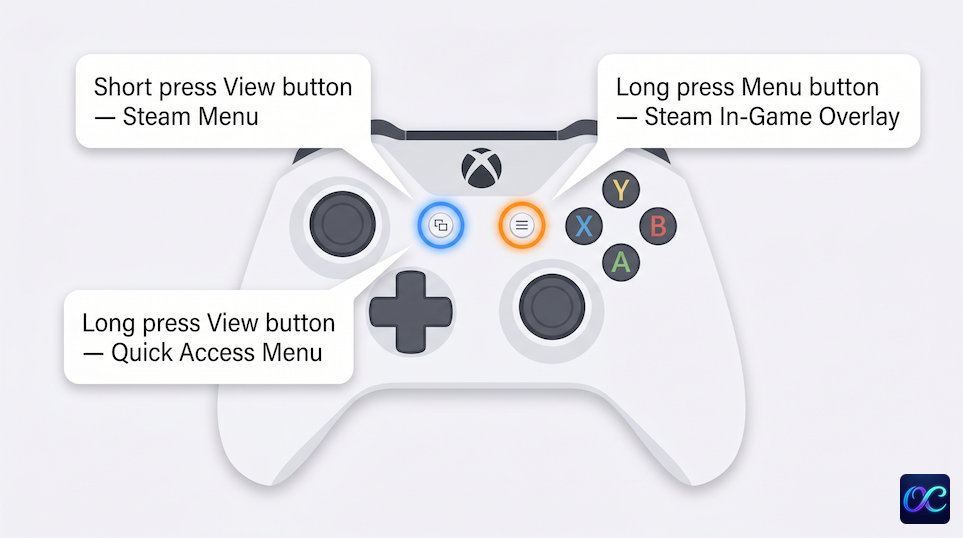
Gamepad Steam Shortcuts
Controller shortcuts for Steam — ⧉ opens Steam menus, long-press ☰ opens the Steam In-Game Overlay.
| Button | Action |
|---|---|
| ⧉ (short press) | Open Steam menu¹ |
| ⧉ (long press) | Open Quick Access menu¹ |
| ☰ (long press) | Open Steam In-Game Overlay²˒³ |
¹ In Steam Big Picture ² In-game ³ Toggleable via the OmniCharm Game Bar widget
Nekomata Mode
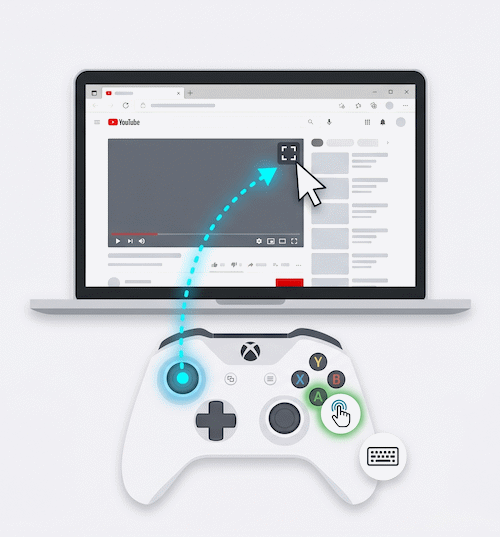
Turn your controller into a mouse and keyboard, customizable per app. Nekomata weaves a charm for each app, remapping every XInput control to keyboard, mouse, or cursor actions, and can raise mapping priority with Nekomata Boost, add hold-to-repeat, and prevent double input. Two layouts — OmniNav or Classic. OmniNav shown below — common keys only; tap the link below for the full reference.
| Button | Action |
|---|---|
| Left Stick | Cursor |
| Right Stick | Scroll |
| A | Left Click |
| B | Right Click |
| X | Page Down |
| Y | Page Up |
| D-pad | Arrow Keys |
On / Off toggle. When on, your customized profiles take over; Edge, Chrome, Firefox, Opera, Brave, Epic Games Store, File Explorer, Steam, and Discord run on built-in mapping (also customizable). Auto-disabled on ROG Ally family.
Features
Everything you need to make your gaming PC feel like a console.
Automatic Platform Launch
Your configured gaming platform starts automatically whenever Xbox Mode (FSE) activates — straight to play, zero extra steps.
Automatic Xbox Mode (FSE) Entry
When launched outside Xbox Mode (FSE) (e.g., from the Start Menu), OmniConsole automatically triggers the Xbox Mode (FSE) entry dialog.
Multi-Platform Support
Built-in support for Steam Big Picture, Xbox App, Epic Games Store, Armoury Crate SE, and Playnite Fullscreen.
Custom Platform Support (experimental)
Add your own platforms via Protocol URI, executable path, or Packaged App (MSIX / APPX), with an optional cover image. Launch arguments are available when using the executable path type.
Platform Import & Export
Share custom platform configurations as JSON. Right-click or long-press a card to export; use the Import button to load shared configurations.
Gamepad-Compatible File Picker
A custom file picker that replaces the system FileOpenPicker (which does not support gamepad input). Browse executables and cover images entirely with a controller.
Card-Grid Settings UI
Large icon cards designed for large-screen and handheld use, operable with mouse, touch, or Xbox controller.
Phantom Glass Backgrounds
A frosted glass background that softly blurs and tints your desktop wallpaper behind the app. Choose from Phantom Glass, Phantom Glass Deep, or the solid Phantom Classic in Settings.
Fluent Motion Throughout
The Launch screen and Settings glide in with smooth entrance animations, and every move between screens flows with a transition.
Game Bar Integration
Game Bar's Home button launches your gaming platform; Library opens OmniConsole Settings.
Troubleshoot Page
A dedicated Xbox Mode (FSE) recovery page — restarts Game Bar to fix issues such as the "Restart for better performance" dialog not appearing, then enters Xbox Mode (FSE).
Environment Snapshot
From the About page, copy a Markdown report of your system, hardware, and OmniConsole health in one click — paste it straight into a bug report.
Gamepad Support
Navigate with D-Pad / Left Stick, A to select, B to exit, LB/RB to switch tabs, Y to add, X to edit, ☰ to set as default and launch immediately.
Nekomata Mode
Use your gamepad as a mouse and keyboard, customizable per app. An On / Off toggle, in OmniNav or Classic layout with adjustable cursor speed. When on, your customized profiles take over, while common apps run on ready-made mapping you can customize too. Nekomata weaves a charm for each app, remapping every XInput control to keyboard, mouse, or cursor actions, and can raise mapping priority with Nekomata Boost, add hold-to-repeat, and prevent double input. Open the editor from the OmniCharm widget.
OmniCharm Widget
A Game Bar widget for in-game quick access — open Task View, the Xbox Library, or the Steam Overlay in one tap. Also toggles Nekomata Mode, controller layout, cursor speed, and the long-press ☰ shortcut for the Steam In-Game Overlay.
Gamepad Steam Shortcuts
The ⧉ button controls Steam Big Picture menus — short press opens the main menu, long press opens Quick Access. In-game, long-press ☰ to open the Steam In-Game Overlay.
Dedicated Settings Entry
A separate "OmniConsole Settings" entry appears in All Apps, so you can change your default platform anytime.
Native Xbox Mode (FSE) Integration
Registered as a Windows 11 Xbox Mode (FSE) Home App through the official API.
In-App Updates
Automatically checks GitHub for the latest release, with built-in downloading and installation directly from the Advanced settings page.
Multilingual UI
Available in English, Traditional Chinese (繁體中文), and Simplified Chinese (简体中文), along with community-contributed languages you can browse, download, and keep up to date from the Advanced settings page.
Prerequisites
Before installing OmniConsole, enable Windows 11 Xbox Mode (FSE).
Desktops / Laptops / Tablets / Non-native Handhelds
Use Xbox Full Screen Experience Tool to enable Xbox Mode (FSE) first.
Open XFSET repositoryNative Xbox Mode (FSE) Handheld Devices
Devices like the ROG Xbox Ally series support Xbox Mode (FSE) out of the box. Install OmniConsole directly.
Xbox Controller Required
Game Bar, Xbox Mode (FSE), and gamepad features all require an Xbox-compatible (XInput) controller with an Xbox button.
Quick Start
Four steps to turn your PC into a gaming console.
- 1
Install OmniConsole
Download the latest release and run Install.bat, or manually install the .cer certificate and both .msix packages.
- 2
Configure Your Default Platform
Open OmniConsole Settings, pick Steam Big Picture / Xbox / Epic / Armoury Crate SE / Playnite, or add a custom one.
- 3
Set as Xbox Mode (FSE) Home App
Windows Settings → Gaming → Xbox mode (FSE) → Choose home app → OmniConsole. Enable "Enter Xbox mode (FSE) on startup".
- 4
Done
Reboot, press the Xbox button and pick "Home", or launch from the Start Menu — your platform opens automatically.